Generate and price each tile size
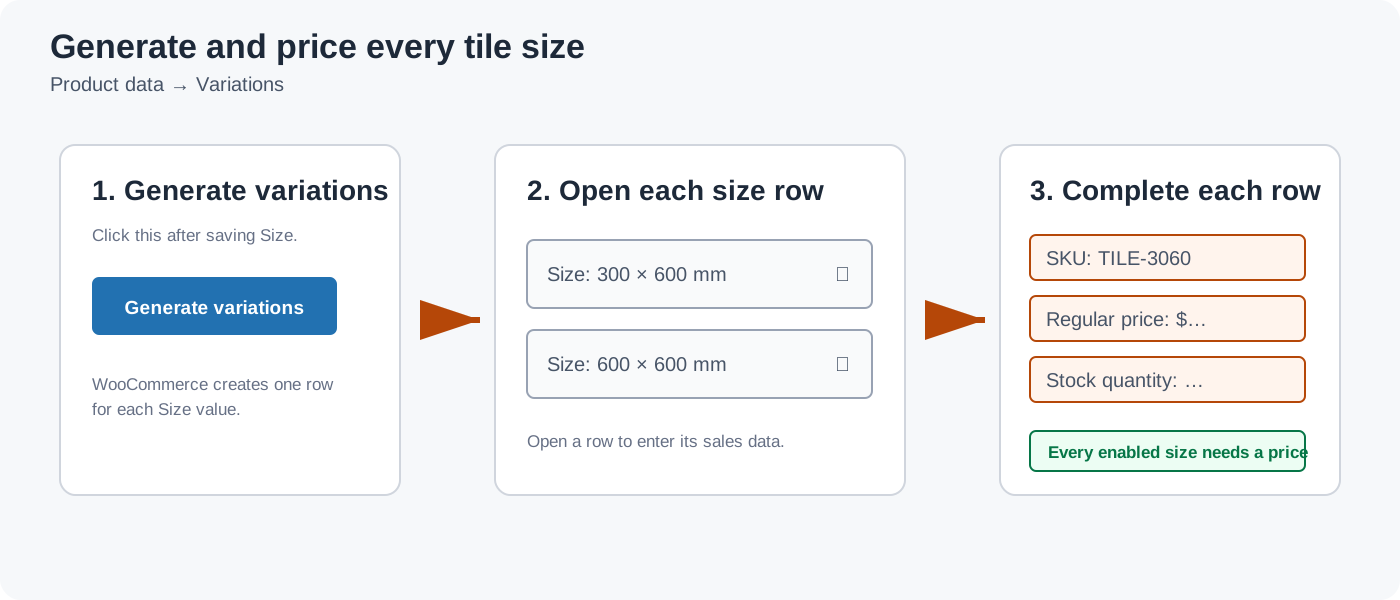
After Size attributes are saved, create one variation row for every sellable size.
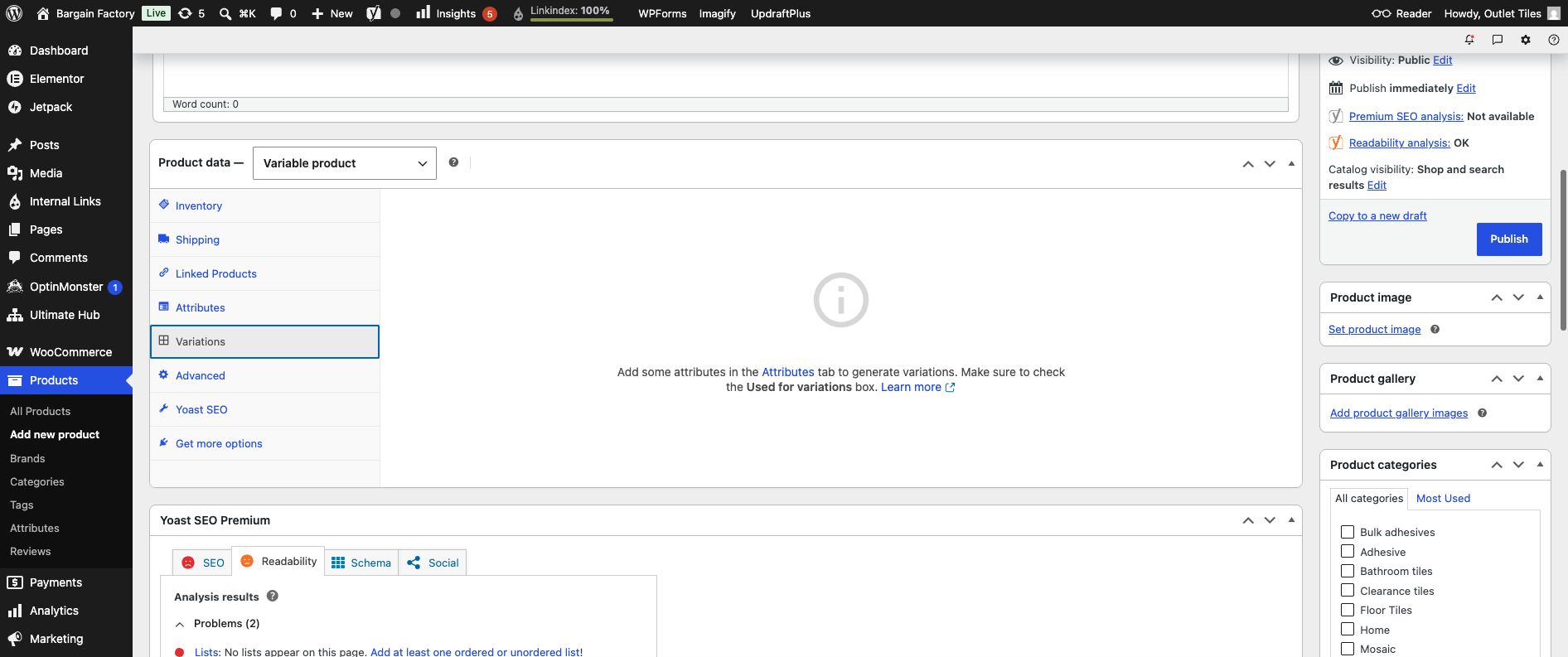
If this message appears, return to Attributes, tick Used for variations, and click Save attributes. Then return here to generate the size rows.
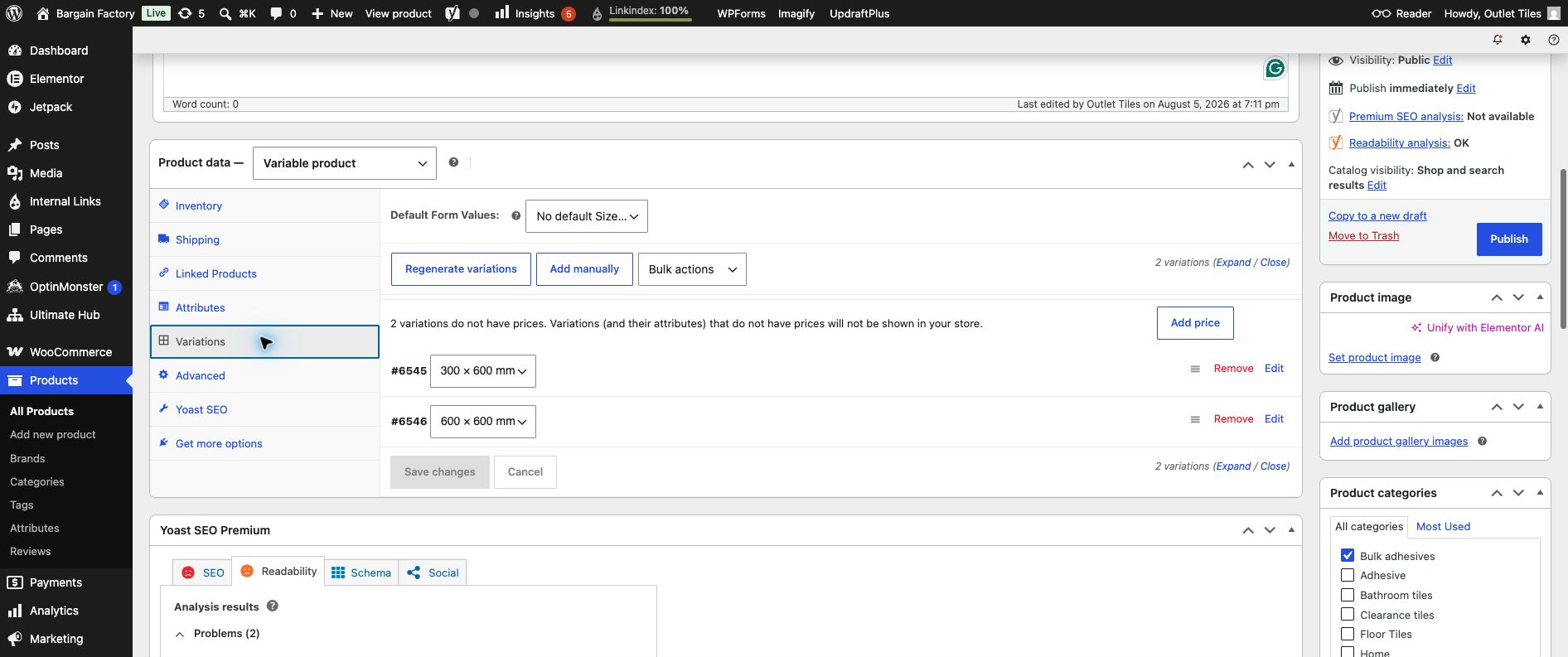
Two Size rows have been generated: 300 × 600 mm and 600 × 600 mm. The warning explains that a price is still required for each row.
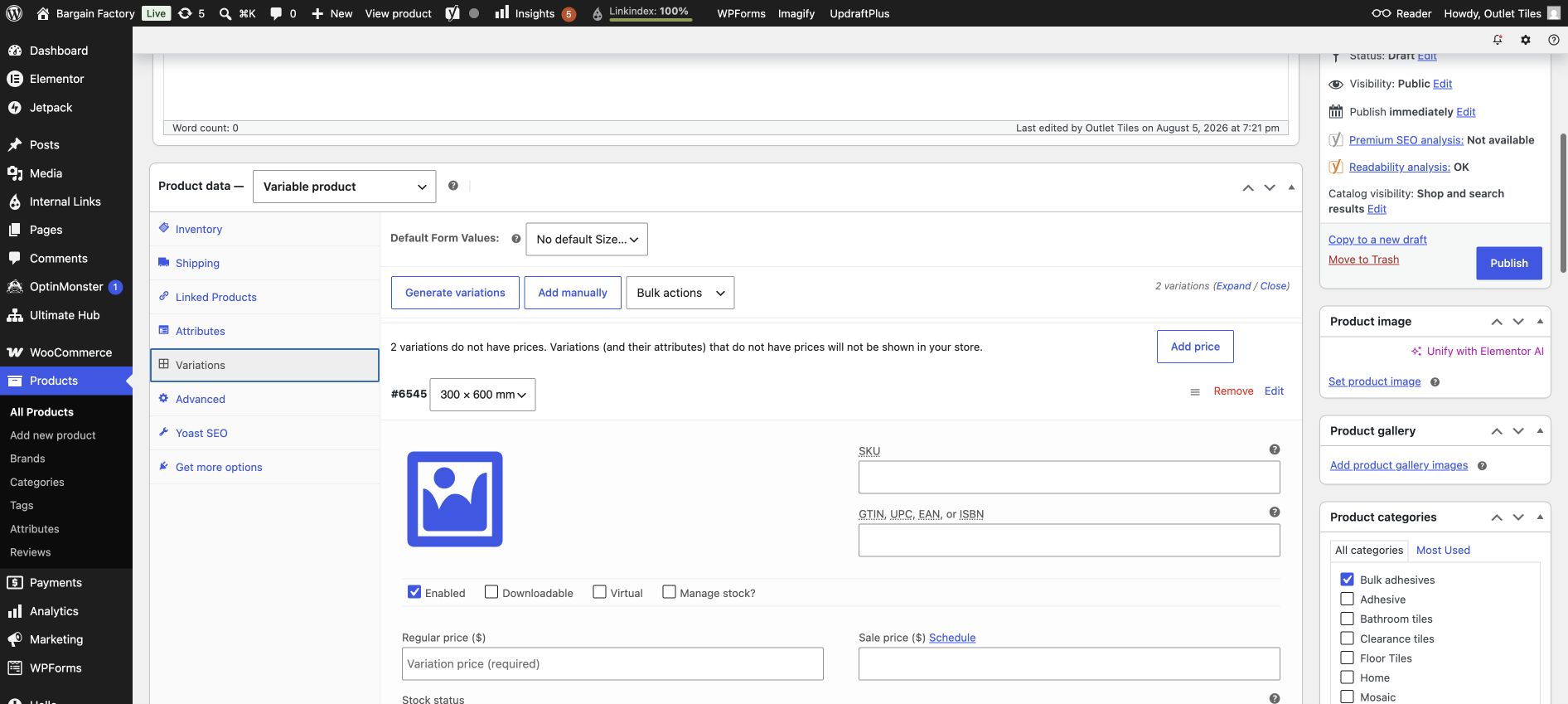
Click Edit beside a size row. Enter its unique SKU and Regular price. Tick Manage stock only when that size has its own stock quantity.
- In Product data, click the Variations tab.
- Click Generate variations and accept the confirmation. WooCommerce creates a row for each Size value.
- Open the first row, for example 300 × 600 mm.
- Enter a unique SKU, regular price, stock quantity, weight and dimensions. Add a variation image if this size looks different.
- Repeat for the next row, for example 600 × 600 mm.
- Make sure each variation is enabled and has a price. An enabled variation without a price cannot be purchased.
- Click Save changes inside the Variations tab.
| Size | Example SKU | Required per variation |
|---|---|---|
| 300 × 600 mm | COLLECTION-3060 | Price, stock, optional weight/image |
| 600 × 600 mm | COLLECTION-6060 | Price, stock, optional weight/image |
What to enter inside each variation
- Click Edit beside a size row to open its fields.
- Enter a unique SKU. Example: use
COLLECTION-3060for 300 × 600 mm andCOLLECTION-6060for 600 × 600 mm. - Enter the Regular price. This is required. If both sizes cost the same, you may use the Add price button, but still check each row afterwards.
- Enable Manage stock? only when this size has its own quantity. Enter the number available and choose the backorder setting.
- Add a variation image only if the size has a different visual appearance. Otherwise the main product image is used.
- Enter variation weight and dimensions when freight cost changes by size.
- Click Save changes. Then click Save Draft in the Publish panel to keep the product unpublished.
Different price for each size
A Variable product lets each size have its own price. Example only:
| Size | Example price | Where to enter it |
|---|---|---|
| 300 × 600 mm | $49.90 | Open the 300 × 600 mm row → Regular price |
| 600 × 600 mm | $69.90 | Open the 600 × 600 mm row → Regular price |
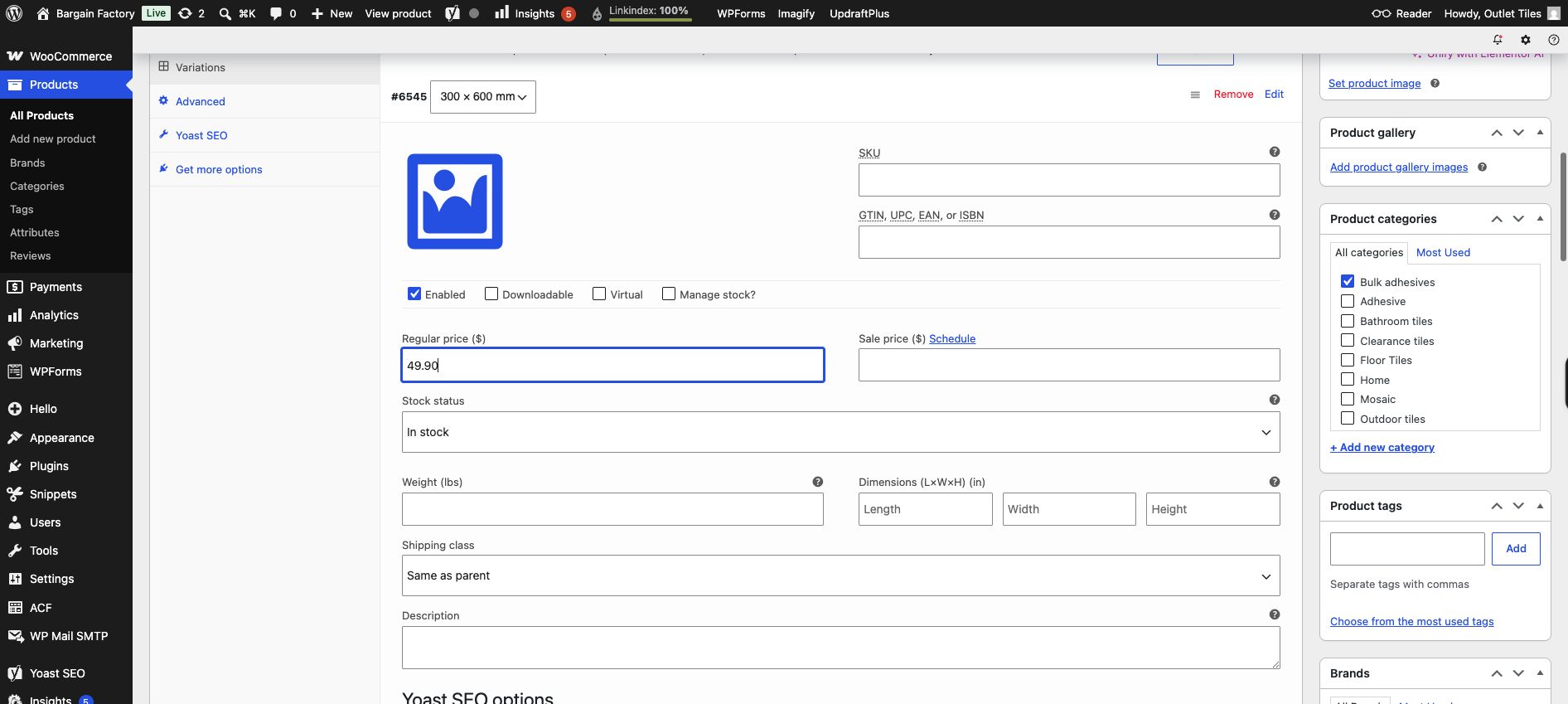
300 × 600 mm: enter 49.90 in Regular price.
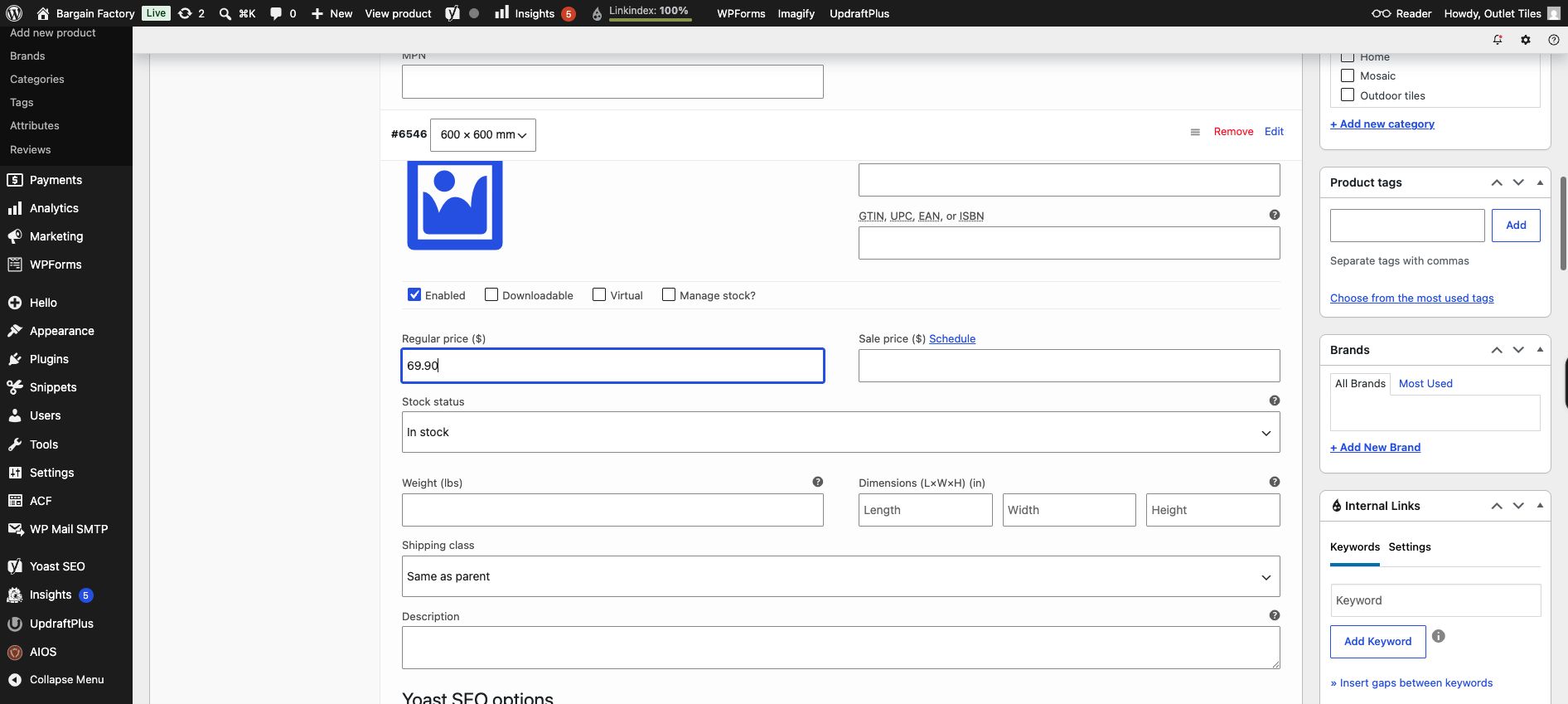
600 × 600 mm: open its separate row and enter 69.90 in Regular price.
Why the price warning matters: WooCommerce will not show a variation to customers when it has no price. The screenshot shows this warning intentionally; resolve it by opening each row and entering a price.