How tile size changes the product setup
Choose the product type based on how customers buy the tile size. The example below uses the existing Outlet Tiles product with ID 5676.
Actual Simple product example
Product: 600x1200mm Boost Balance Pure White Glazed Porcelain Italian Floor Tile (product ID 5676).
This product is set to Simple product. It has one regular price of $734.40 in Product data → General. There is no Variations tab because customers do not choose a size on the same product page.
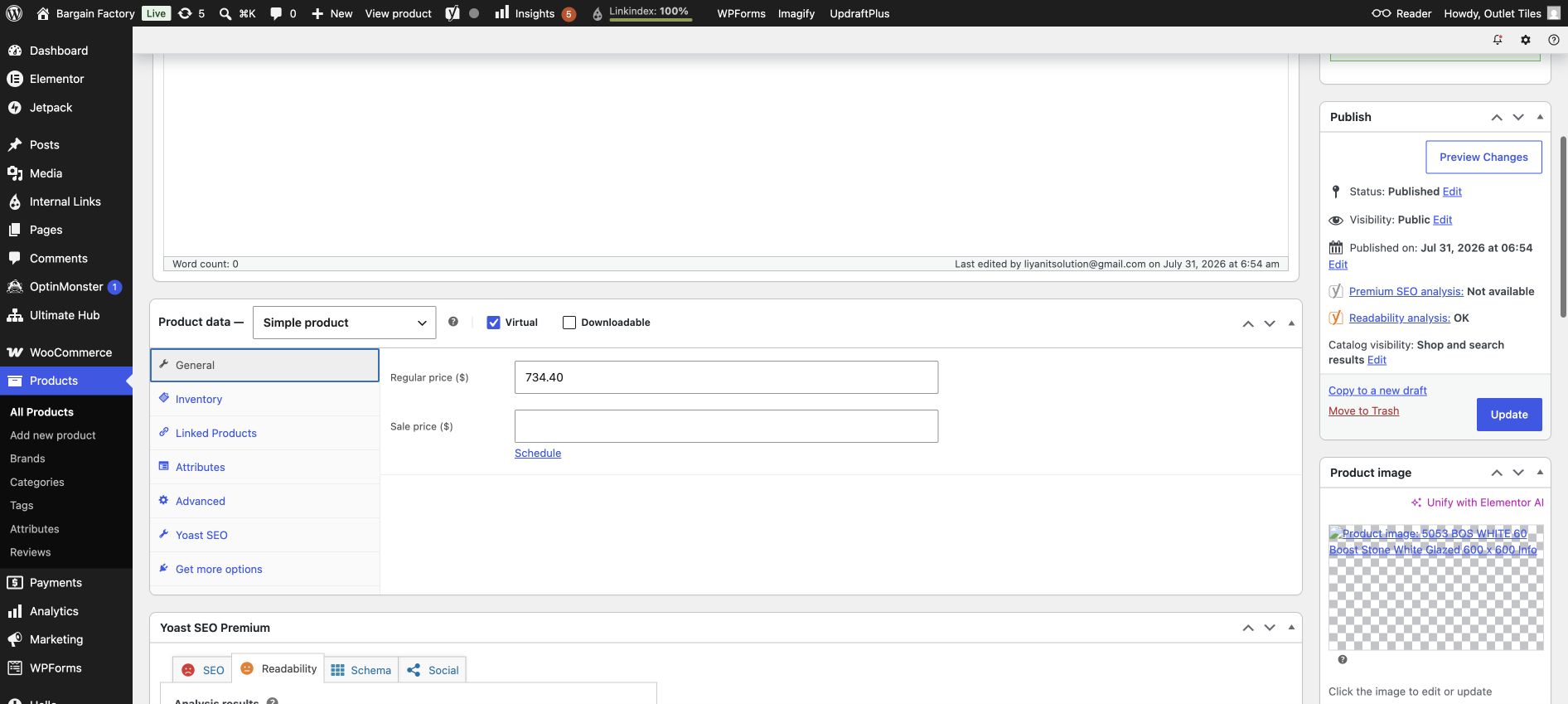
The dropdown shows Simple product. The tile size is included in the title, so this product represents one specific sellable size.
Size rule: one size or many sizes?
| If the customer buys… | Use | Where the size goes |
|---|---|---|
| Only 600 × 1200 mm from this page | Simple product | Put 600x1200mm in the title. Add one price, one SKU and one stock setting. |
| A choice of 300 × 600 mm or 600 × 600 mm on one page | Variable product | Keep the title general. Add Size as an attribute and create a variation for each size. |
Simple product: size is in the title
- Use a title such as
600x1200mm Boost Balance Pure White Glazed Porcelain Italian Floor Tile. - The title tells the customer the exact size they are buying. There is no Size dropdown to select.
- Set the one Regular price in Product data → General.
- Set one SKU and one stock quantity in Inventory.
- If you sell the same tile in 600 × 600 mm, create another Simple product with
600x600mmin its title.
Variable product: size is a customer choice
Use Variable product when one collection has several sizes that shoppers should choose from on a single page. The title is general, for example Boost Balance Pure White Glazed Porcelain Tile. Do not put only one size in this title.
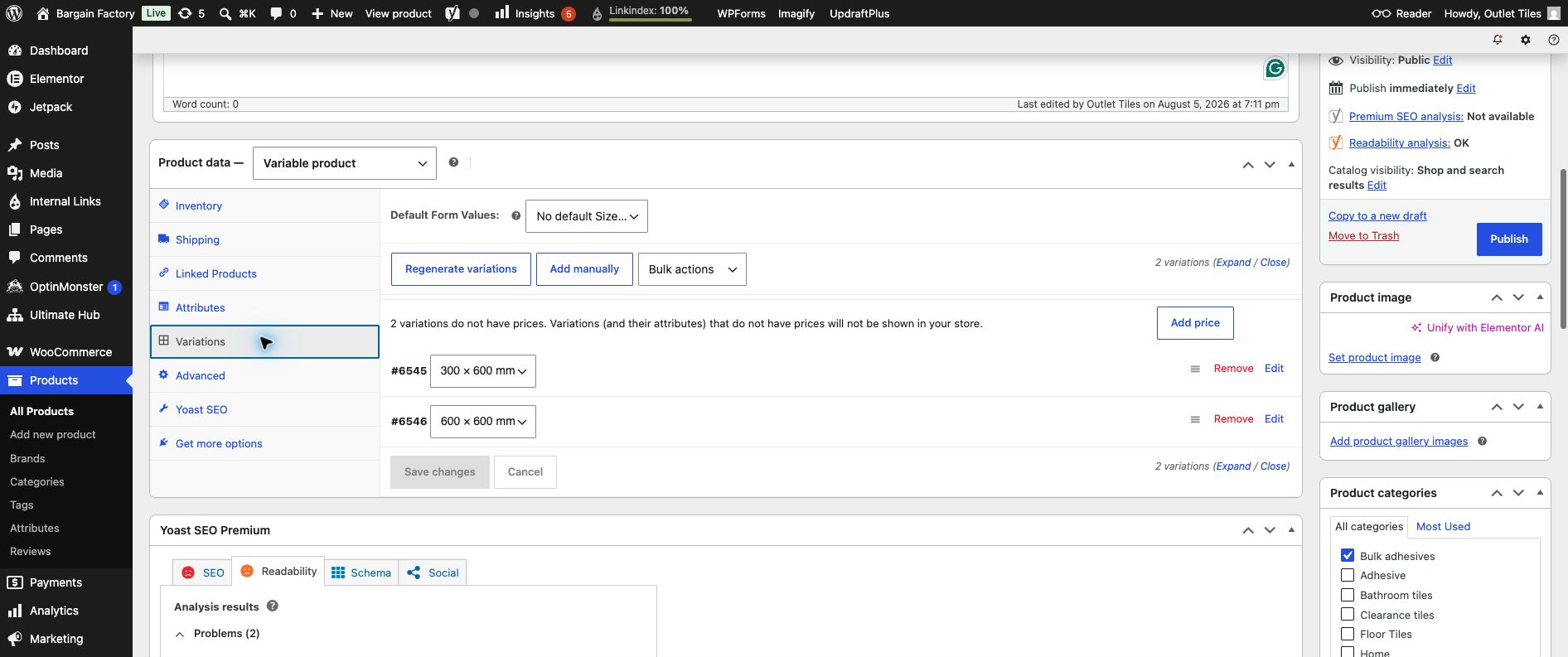
A Variable product creates one row for each Size choice. Each row can have its own SKU, price, stock, weight and image.
Variable size setup: exact fields
- Attributes → Name: enter
Size. - Attributes → Value(s): enter
300 × 600 mm | 600 × 600 mm. Use|between sizes. - Tick Used for variations, then click Save attributes.
- Variations → Generate variations: WooCommerce creates a row for every size.
- Open each size row. Add the SKU, price and stock for that exact size.
| Feature | Simple product — product 5676 | Variable product — different sizes |
|---|---|---|
| Customer choice | No size dropdown; the page sells one size. | Customer selects a size, such as 300 × 600 mm or 600 × 600 mm. |
| Product title | Include the sellable size in the title, for example 600x1200mm. | Use the collection name; show sizes as Size variations. |
| Price | One Regular price in Product data → General. | Enter a price inside every size row. |
| SKU and stock | One SKU and one stock setting for the product. | Each size needs its own SKU and can have its own stock. |