Create a Simple tile product
Use this page when the product has one sellable size only, for example a 600 × 600 mm tile.
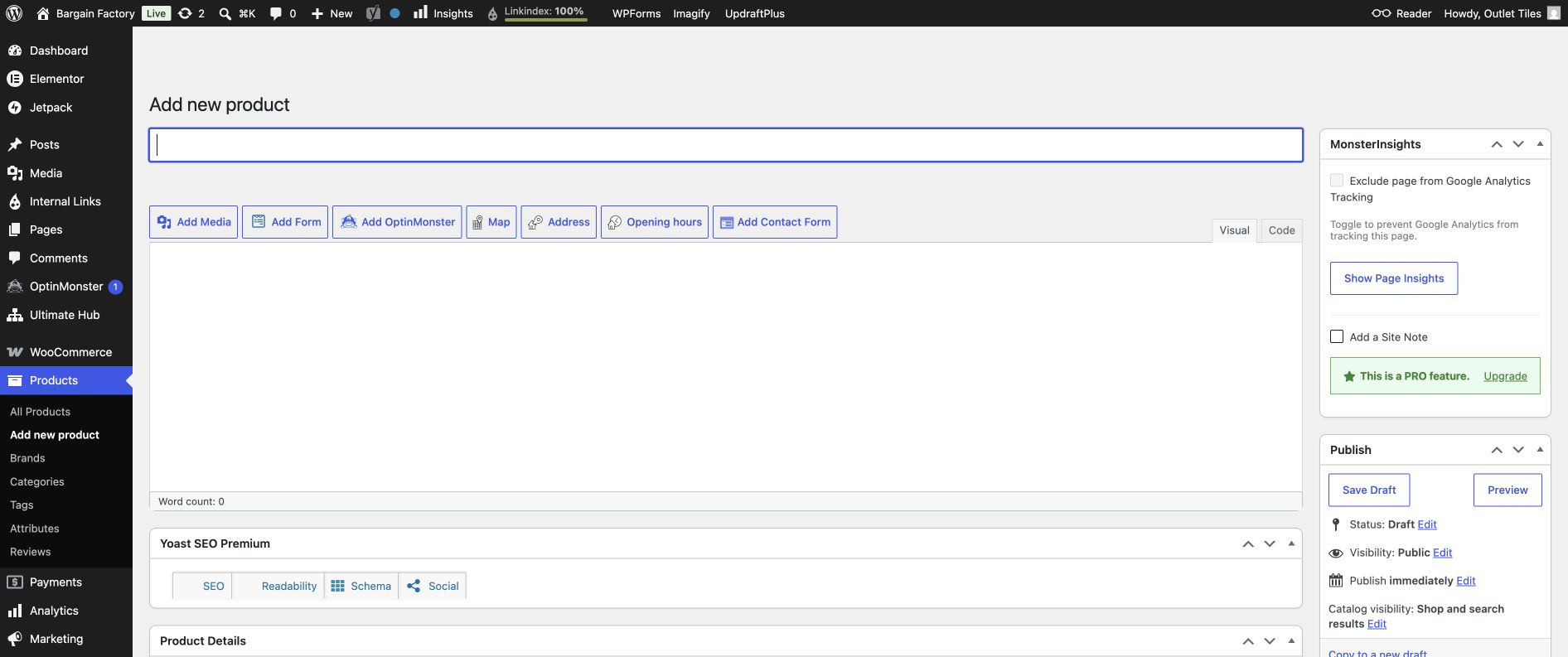
Enter the product name at the top. Product data is lower on the page.
- Open Products → Add new product.
- Enter a clear title, for example
Carrara Matt Porcelain Tile 600 × 600 mm. - Write the description: material, finish, colour, size, box coverage, suitable areas and any shade note.
- Scroll to Product data. Leave the dropdown as Simple product.
- In General, add the regular price. Add a sale price only when needed.
- In Inventory, enter one unique SKU and choose whether to manage stock.
- In Shipping, enter the weight and dimensions if the store uses them for freight.
- On the right, set the main Product image and add gallery images. Choose categories and brand.
- Click Save Draft while the product is incomplete. Click Publish only after checking it.
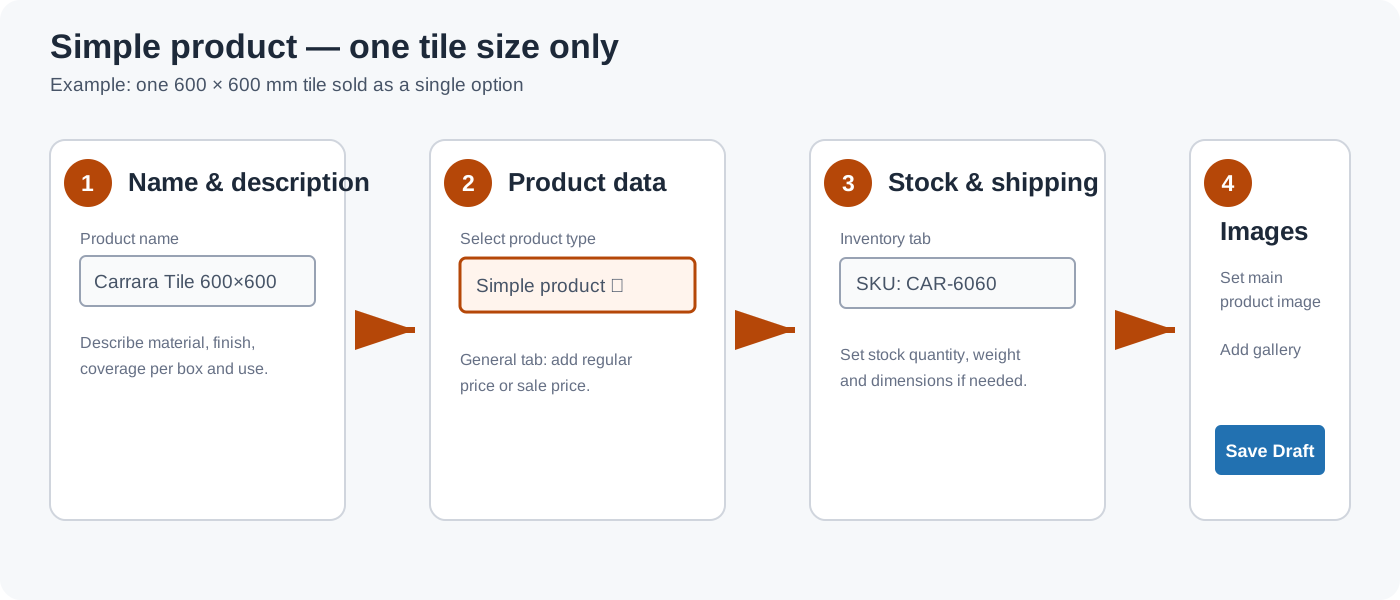
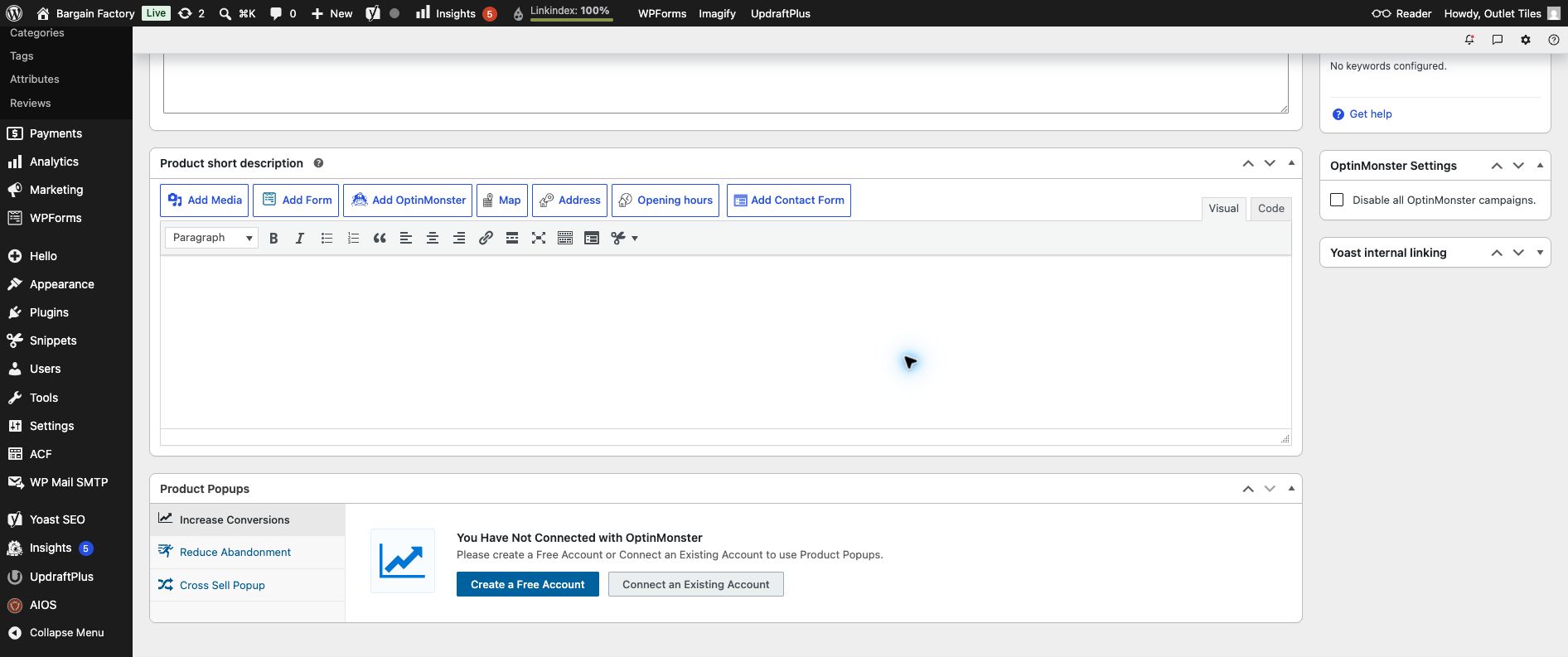
Draft example — the product type is Simple product. Enter title, price and SKU before saving the draft.